Registration form
Registration form builder for events, courses, and memberships
Ask only for the details you need, cap sign-ups at capacity, and share the form by link, embed, or QR code. Every registration lands in one list, ready to work from.



Registration types
One builder for events, courses, and memberships
Collect sign-ups for events, webinars, courses, memberships, and workshops with one form builder that also keeps the guest list in order.
For events and workshops
Take attendee names, contact details, session choices, and dietary needs, then cap the list at capacity and close the form on the day.
Use template
For course enrollment
Enroll students with a start date, level, and schedule choice, then route beginners and returners to different confirmation screens.
Use template
For membership sign-ups
Ask new members for the basics, their interests, and how they heard about you, then keep the list in one place as it grows.
Use template
No-code builder
Registration forms you can build without a developer
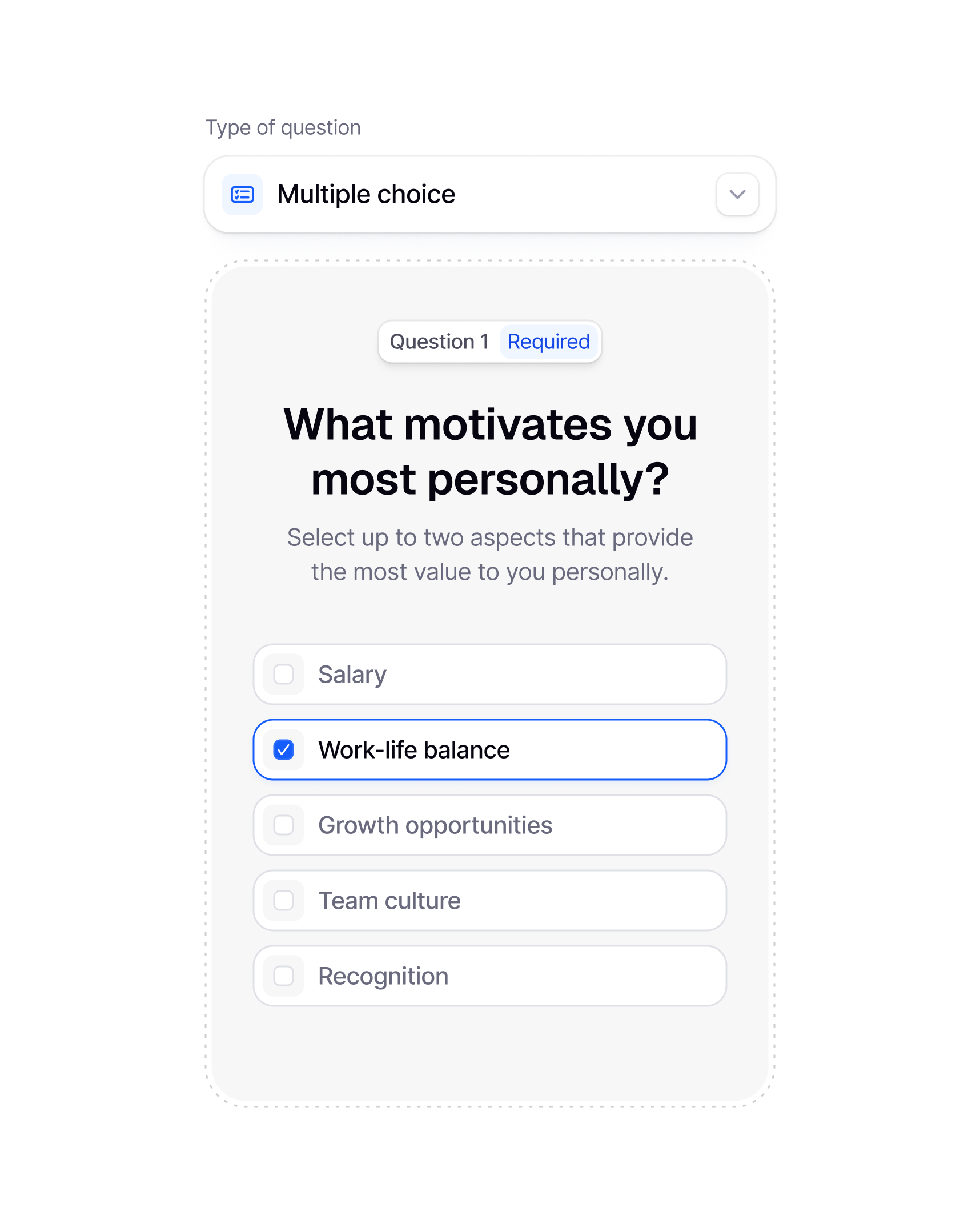
Drop in contact fields, session choices, a date question, or a file upload, then walk through the form exactly as a registrant will before you publish.
Each field is one decision: what to ask, whether it is required, and who sees it. Set the seat limit, read the form through once, and publish. There is nothing to install and nothing to stitch together afterwards.

Customization
Registration that carries your brand
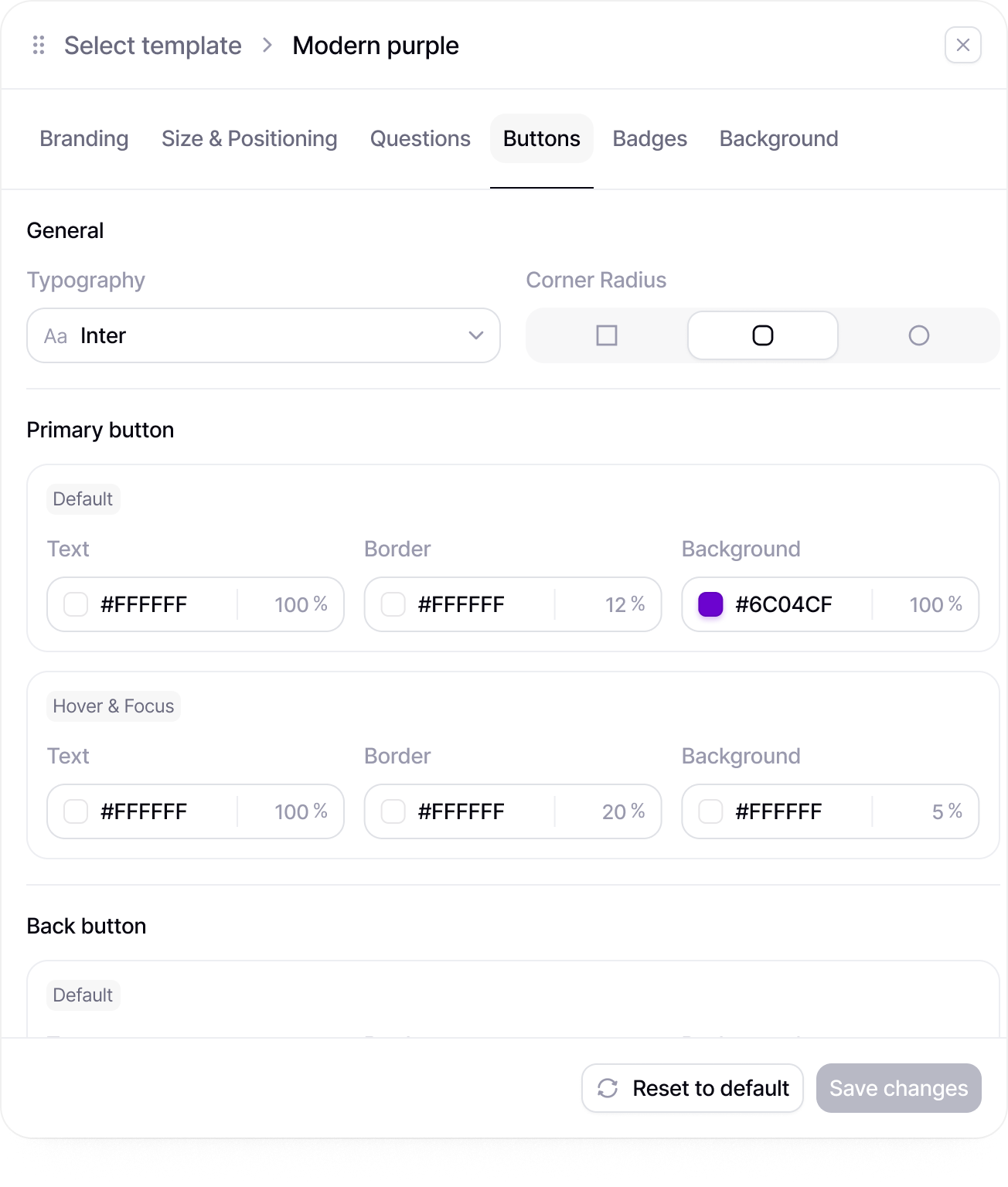
Put your logo on the welcome screen, your colors on the buttons, and your own words on the end screen. Registrants see at a glance they are in the right place.
Start from a theme when the form is due tomorrow, or set every visual by hand when it is the flagship event. Fonts, images, and layouts hold all the way to the confirmation screen, so the form reads as part of the event rather than a detour.
Sign-up templates
Open registration from a template, not a blank page
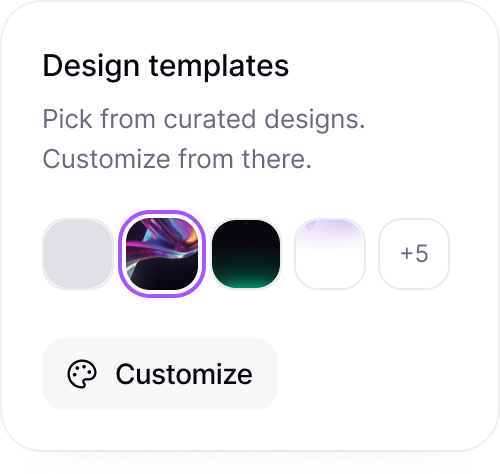
Pick the template closest to your event, swap in your own fields and wording, add the logo, and the form is ready to share.
Filling a conference, enrolling a cohort, or taking names for a workshop each starts from a template with the usual fields already in place. Trim what you do not need, add what you do, and the structure holds.


Security
Registrant details stay where you put them
Names, emails, and answers stay inside your Validata workspace, where the registrant list is one view instead of a chain of exports.
Decide who on the team can edit the form and who can only read the list. Each event and cohort keeps its own list, so the front desk sees its attendees and only the people you invite see the rest.
Collaboration
The whole team on one sign-up form
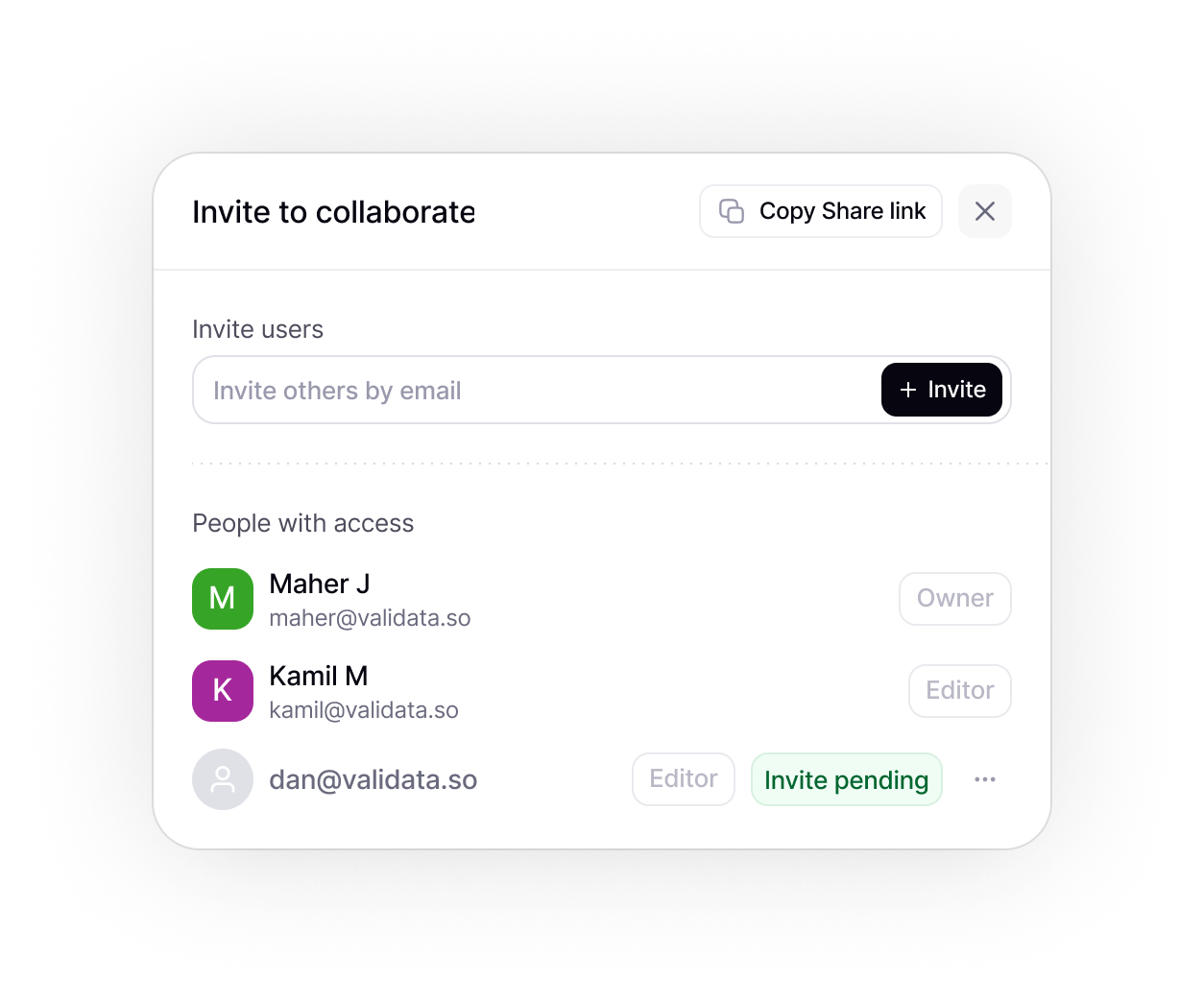
Organizers, speakers, and admins open the same draft, fix the wording where they find it, and agree it is ready before the link goes out.
The event lead settles the questions. The designer matches the look. The coordinator watches the count against the room. All three work on the same form, not on three copies passed around by email.

Slack
Send new response alerts to Slack
Every new survey response can trigger a Slack notification, so your team sees new feedback without checking the dashboard.
Share low completion warnings
Alert your team when survey completion drops below a selected threshold.
Send campaign launch updates
Post a Slack update when a new survey email campaign is sent through Mailchimp.
Notify the team when a survey is completed
Send a message to your team when a respondent finishes the survey.
Response tracking
Watch the guest list fill up in real time
See sign-ups as they land and the completion rate beside them. Find the field where people give up and the ones they skip, then fix the form while it is still open.
A form that asks for too much shows up as a drop in the count at the same field every time. Open any single registration, check the running total against your seat limit, and change the form in place.
Integrations
Connect your tools
Send data where it matters. Integrate with Sheets, Notion, Slack, and 100+ apps via Zapier.
Slack
Slack
Send new response alerts to Slack
Every new survey response can trigger a Slack notification, so your team sees new feedback without checking the dashboard.
Share low completion warnings
Alert your team when survey completion drops below a selected threshold.
Send campaign launch updates
Post a Slack update when a new survey email campaign is sent through Mailchimp.
Notify the team when a survey is completed
Send a message to your team when a respondent finishes the survey.
Zapier
Zapier
Connect survey responses to your tools
Use Zapier to send new survey responses to the apps your team already uses.

Create tasks after new submissions
Automatically create a task or database item when a new response is submitted.
Save files to cloud storage
Automatically save exports, attachments, or uploaded files to your preferred storage tool.
Add respondents to mailing lists
Send respondents into the right Mailchimp audience after they complete a survey.
Google Drive
Google Drive
Save survey exports to Google Drive
Store CSV, PDF, or spreadsheet exports in a selected Google Drive folder.
Keep uploaded files organized
Save respondent uploads and survey files in one shared Drive location.
Share survey assets with the team
Send a Slack message when new survey files are added to Google Drive.
Store campaign materials
Keep email assets, survey links, and campaign files organized in Drive.
Dropbox
Dropbox
Back up survey exports to Dropbox
Automatically save exported survey files to a selected Dropbox folder.
Organize project folders automatically
Create or update Dropbox folders when a new survey project is created.
Share files with stakeholders
Notify a Slack channel when new survey files are available in Dropbox.
Store respondent uploads
Send uploaded files from survey responses directly to Dropbox.
ChatGPT
ChatGPT
Draft follow-up emails from responses
Use respondent answers to generate personalized follow-up emails after the survey is completed.
Personalize respondent communication
Adapt email copy, reminders, or next-step messages based on selected answers or respondent details.
Write reply drafts for specific feedback
Turn individual survey responses into ready-to-send reply drafts for your team to review.
Create thank-you messages for respondents
Generate custom thank-you messages based on how someone answered the survey.
Mailchimp
Mailchimp
Add respondents to Mailchimp
Send completed survey respondents to a selected Mailchimp audience.
Trigger follow-up emails
Start an email sequence after someone completes your survey.
Send survey invitations
Distribute survey links to selected audiences directly through Mailchimp campaigns.
Segment contacts by response
Group respondents based on selected answers, scores, or form fields.
Google Sheets
Google Sheets
Save responses in Google Sheets
Every new survey response is automatically added to a Google Sheet for easy analysis and reporting.
Update team trackers
Notify your team when a shared response tracker receives new submissions.
Sync response data for operations
Send survey data into operational spreadsheets used by sales, research, or support teams.
Keep live response records
Maintain a live spreadsheet with respondent details, answers, and submission time.
Notion
Notion
Save responses to Notion
Send new survey responses into a Notion database for easy organization.
Create feedback records
Turn each submitted response into a structured feedback item in Notion.
Track research projects
Link survey files, project notes, and response exports inside your Notion workspace.
Notify teams about new entries
Send a Slack update when a new survey response is added to a Notion database.
+100
more intergrations
Registration types
Registration templates ready to share
Each template comes with the fields a sign-up usually needs. Rename, reorder, or remove them, set a limit, and the form is ready to share.
Event sign-up template
Collect attendee details, session or track choices, and dietary needs, then cap the list at capacity and close the form on the day.
Try template
Webinar registration form template
Take names, work emails, and the questions attendees want answered before the webinar starts.
Try template
Course enrollment template
Enroll students with their level, start date, and preferred schedule in one form.
Try template
FAQ
Frequently Asked Questions
What Validata does differently, and what that means for your team.
A registration form builder is where you set up the sign-up form for an event, course, or membership and collect who is coming, with no code. Validata adds contact fields, date questions, conditional logic, response limits, branding, and live tracking.
Start from a registration template or a blank form in Validata and add the fields you need. Set a response limit, put your branding on it, and share it by link, embed, or QR code. It is free to start.
Event registration, webinar and workshop sign-ups, course enrollment, membership applications, and volunteer lists are the usual cases. Whenever people put their name down before something starts, a registration form does the job.
Everything a sign-up usually needs: contact fields for name, email, and phone, single and multiple choice for sessions or tracks, date, number, short and long text, and file upload. Add a welcome screen and an end screen to open and close the form.
Yes. Set a maximum number of responses and the form closes itself when the last seat is taken. You can also schedule when registration opens and closes, or pause the form by hand if plans change.
Yes. Ask about travel only when someone is coming from out of town, let a student who picks the evening slot skip the daytime questions, and give members and first-timers their own end screens.
Yes. Each form takes your logo, colors, fonts, and images, and you write the welcome and end screens yourself, so a workshop and a conference can look different.
Yes. Connect the form to Google Sheets, Mailchimp, HubSpot, Slack, or Notion and each registration is sent over as it arrives. Use automations to start a follow-up in the connected tool, such as a welcome email to the registrant, without exporting anything by hand.
Yes. Registrations show up in real time, with the completion rate, drop-off points, and skipped fields beside them. Open any single registration to check the details, and compare the running total against your limit as the date approaches.

You’ve used forms before.
Now use insight.
You don’t need another tool for collecting responses you need a smarter way to understand what they actually mean.