Contact form
Contact form builder for inquiries, support requests, and quotes
Build a contact form with name and email fields, file upload, and follow-up questions by topic. Embed it on your website and send every submission straight to Slack or HubSpot.



Form types
A contact form for every reason someone writes in
A general contact page, a support ticket, and a quote request each need different fields. Validata builds all of them in one place.
For general inquiries
Take name, email, and message from anyone on your contact page, with a topic field so the right person reads it first.
Use template
For support requests
Ask what went wrong, which product it concerns, and how urgent it is, with a screenshot attached so the first reply is useful.
Use template
For quote requests
Ask for scope, quantity, budget, and timeline in a short guided flow, then send each request to HubSpot or Slack for pricing.
Use template
No-code builder
Create a website contact form without code, plugins, or a developer
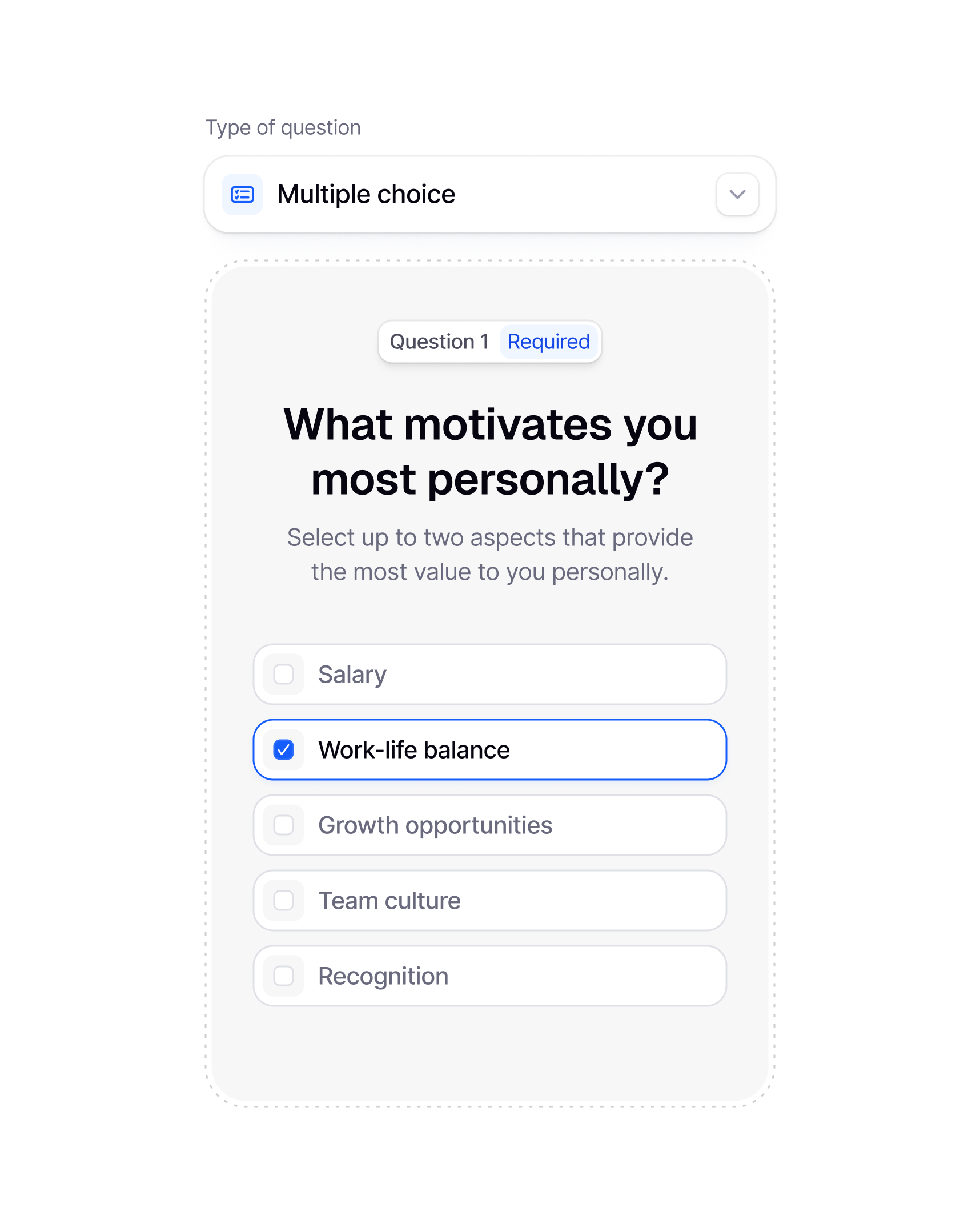
Add contact fields, a message box, a topic selector, and file upload, then preview the form exactly as a visitor will see it on your site.
Pick the fields you need, write the labels, and decide which follow-up questions each topic opens. When the form reads well, paste the embed snippet into your page and it is live, with nothing to install and nothing for a developer to maintain.

Customization
Make the form look like part of your site
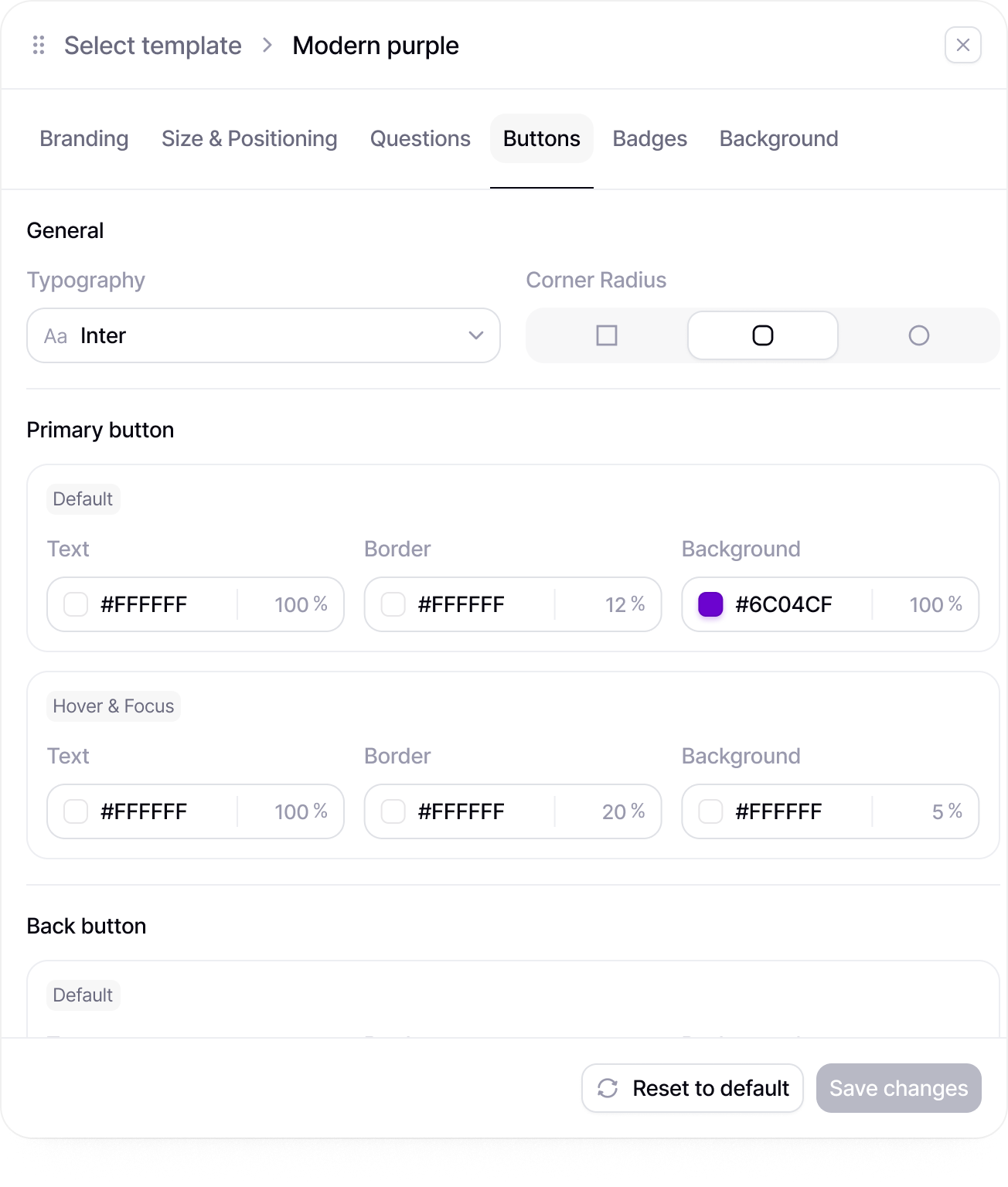
Set colors, fonts, buttons, and layout so the contact form matches the page around it instead of looking like a box dropped in from another product.
Pick a theme to get close in seconds, then adjust the details: your logo, the layout, the button label, the thank-you screen. A visitor should not notice where your site ends and the form begins, and should never wonder whether the message went through.
Form templates
Start from a contact form template, not a blank page
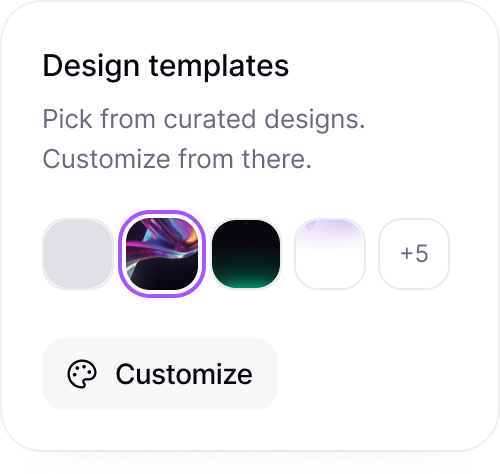
Open a template, rename the fields to match what you need to know, add your branding, and the form is ready for your site.
There are templates for a general contact page, a support request, and a quote request. Each one is a working form you can publish the same day and tune as the first messages come in.


Security
Keep contact details protected and easy to find
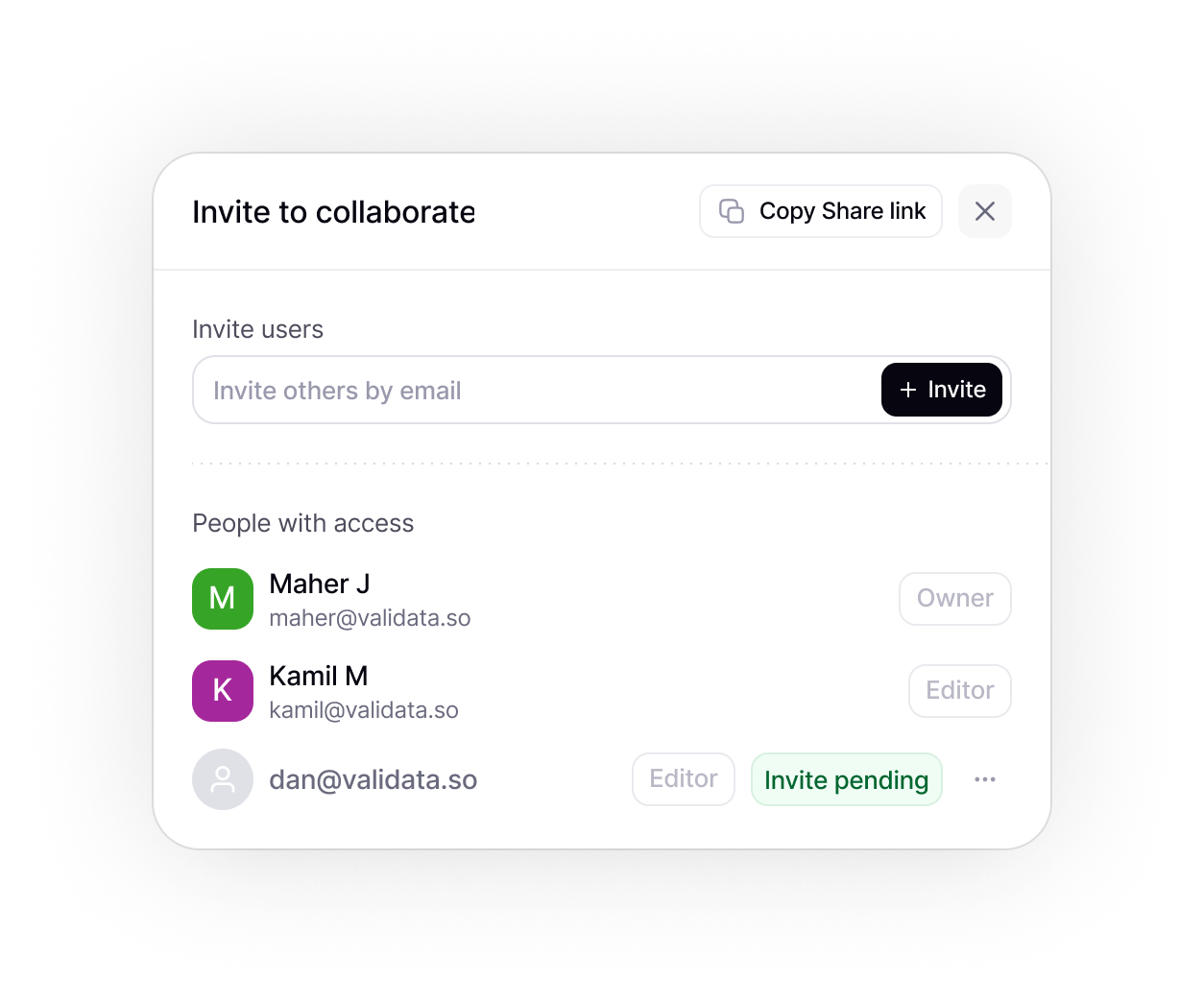
Submissions land in a workspace with access control, so contact details are not scattered across inboxes and spreadsheets.
Decide who can edit the form and who can read the messages. Keep each site's contact form in one workspace and adjust access when someone joins or leaves the team.
Collaboration
Build the contact form with your team
The people who will answer the messages can check the fields, the topic list, and the wording before a single visitor sees the form.
Support wants a product field, sales wants a budget range, marketing wants the button to match the site. Each of them can edit the form directly, so the version you publish is the one everyone agreed on.

Slack
Send new response alerts to Slack
Every new survey response can trigger a Slack notification, so your team sees new feedback without checking the dashboard.
Share low completion warnings
Alert your team when survey completion drops below a selected threshold.
Send campaign launch updates
Post a Slack update when a new survey email campaign is sent through Mailchimp.
Notify the team when a survey is completed
Send a message to your team when a respondent finishes the survey.
Response tracking
See where visitors give up on the form
Completion rates, drop-off points, and skipped fields tell you whether visitors finish the form or give up halfway, and which field made them stop.
If the phone number field is where people leave, you will see it and can cut the field or move it later in the form. Review individual submissions, watch the numbers change in real time, and keep editing the form while it is live on your site.
Integrations
Connect your tools
Send data where it matters. Integrate with Sheets, Notion, Slack, and 100+ apps via Zapier.
Slack
Slack
Send new response alerts to Slack
Every new survey response can trigger a Slack notification, so your team sees new feedback without checking the dashboard.
Share low completion warnings
Alert your team when survey completion drops below a selected threshold.
Send campaign launch updates
Post a Slack update when a new survey email campaign is sent through Mailchimp.
Notify the team when a survey is completed
Send a message to your team when a respondent finishes the survey.
Zapier
Zapier
Connect survey responses to your tools
Use Zapier to send new survey responses to the apps your team already uses.

Create tasks after new submissions
Automatically create a task or database item when a new response is submitted.
Save files to cloud storage
Automatically save exports, attachments, or uploaded files to your preferred storage tool.
Add respondents to mailing lists
Send respondents into the right Mailchimp audience after they complete a survey.
Google Drive
Google Drive
Save survey exports to Google Drive
Store CSV, PDF, or spreadsheet exports in a selected Google Drive folder.
Keep uploaded files organized
Save respondent uploads and survey files in one shared Drive location.
Share survey assets with the team
Send a Slack message when new survey files are added to Google Drive.
Store campaign materials
Keep email assets, survey links, and campaign files organized in Drive.
Dropbox
Dropbox
Back up survey exports to Dropbox
Automatically save exported survey files to a selected Dropbox folder.
Organize project folders automatically
Create or update Dropbox folders when a new survey project is created.
Share files with stakeholders
Notify a Slack channel when new survey files are available in Dropbox.
Store respondent uploads
Send uploaded files from survey responses directly to Dropbox.
ChatGPT
ChatGPT
Draft follow-up emails from responses
Use respondent answers to generate personalized follow-up emails after the survey is completed.
Personalize respondent communication
Adapt email copy, reminders, or next-step messages based on selected answers or respondent details.
Write reply drafts for specific feedback
Turn individual survey responses into ready-to-send reply drafts for your team to review.
Create thank-you messages for respondents
Generate custom thank-you messages based on how someone answered the survey.
Mailchimp
Mailchimp
Add respondents to Mailchimp
Send completed survey respondents to a selected Mailchimp audience.
Trigger follow-up emails
Start an email sequence after someone completes your survey.
Send survey invitations
Distribute survey links to selected audiences directly through Mailchimp campaigns.
Segment contacts by response
Group respondents based on selected answers, scores, or form fields.
Google Sheets
Google Sheets
Save responses in Google Sheets
Every new survey response is automatically added to a Google Sheet for easy analysis and reporting.
Update team trackers
Notify your team when a shared response tracker receives new submissions.
Sync response data for operations
Send survey data into operational spreadsheets used by sales, research, or support teams.
Keep live response records
Maintain a live spreadsheet with respondent details, answers, and submission time.
Notion
Notion
Save responses to Notion
Send new survey responses into a Notion database for easy organization.
Create feedback records
Turn each submitted response into a structured feedback item in Notion.
Track research projects
Link survey files, project notes, and response exports inside your Notion workspace.
Notify teams about new entries
Send a Slack update when a new survey response is added to a Notion database.
+100
more intergrations
Form types
Start with a contact form template
Each template is a working contact form with the fields already in place. Pick one, change the wording, add your branding, and publish it.
Contact form template
Name, email, message, and a topic field, ready to embed on a contact page. Add file upload or extra questions per topic when you need them.
Try template
Support request form template
Product, problem description, urgency, and a screenshot upload so the first reply solves it.
Try template
Quote request form template
Scope, quantity, budget, and timeline, sent straight to HubSpot or Slack.
Try template
FAQ
Frequently Asked Questions
What Validata does differently, and what that means for your team.
A contact form builder lets you create a website form and collect messages without writing code. With Validata you can add file upload and topic-based follow-ups, match the form to your site, embed it with one snippet, and read every message in one workspace.
Yes. Validata is free to start, so you can build the contact form, embed it on your site, and read the first messages without setting anything else up.
A general contact page form, a sales inquiry form, a support request form, a quote request form, a partnership or press inquiry form, and any other form where a visitor needs to reach a specific person on your team.
Most contact forms use contact fields for name, email, and phone, long text for the message, and single or multiple choice for the topic. Number, date, and file upload fields plus welcome and end screens are available as well.
Yes. Conditional logic shows follow-up questions based on the topic a visitor picks. A support question can ask for the product and a screenshot while a sales question asks for budget and timeline.
Yes. Change colors, fonts, layout, buttons, and the thank-you screen, add your logo, and the form will read as part of the page rather than an add-on.
Yes. Ask AI for a first draft of the form, then have it tighten field labels, rewrite the intro text in your tone, or suggest the topic options a visitor can choose from.
Copy the embed snippet from Validata and paste it into your page. You can also share the form as a link, send it by email, or put it behind a QR code.
Yes. Connect the contact form to Slack, HubSpot, Google Sheets, Notion, or Mailchimp, and each submission is sent there as it arrives. You can also trigger a follow-up, such as a confirmation email to the person who wrote in.
Most contact form plugins collect a message and email it to you. With Validata the form asks follow-up questions per topic, accepts file uploads, matches your site, routes each message to Slack or HubSpot, and shows where visitors give up.

You’ve used forms before.
Now use insight.
You don’t need another tool for collecting responses you need a smarter way to understand what they actually mean.