Quiz maker
Online quiz maker for tests, personality types, and lead capture
Write the questions, set the answer options, and route each person to the right result, with AI to draft a first version when you need a head start.



Quiz types
One quiz maker for tests, types, and leads
Knowledge tests, personality quizzes, and lead quizzes all start in the same editor, with branching and branded result pages built in.
For knowledge tests
Check what people remember after a lesson, onboarding, or a demo. Use choice questions with one right answer and review each person's answers in the results.
Use template
For personality quizzes
Ask choice questions and branch each person to a type based on what they pick. A branded result page gives the quiz a reason to be shared on a campaign page.
Use template
For lead quizzes
Turn a product finder or a quick self-assessment into a lead source. Ask for a name and email before the result, and send each contact to HubSpot or Google Sheets.
Use template
No-code builder
Build a quiz online without code, plugins, or a designer
Questions, answer options, branching, branding, and the preview sit in one editor, so a quiz goes from idea to link without leaving the page.
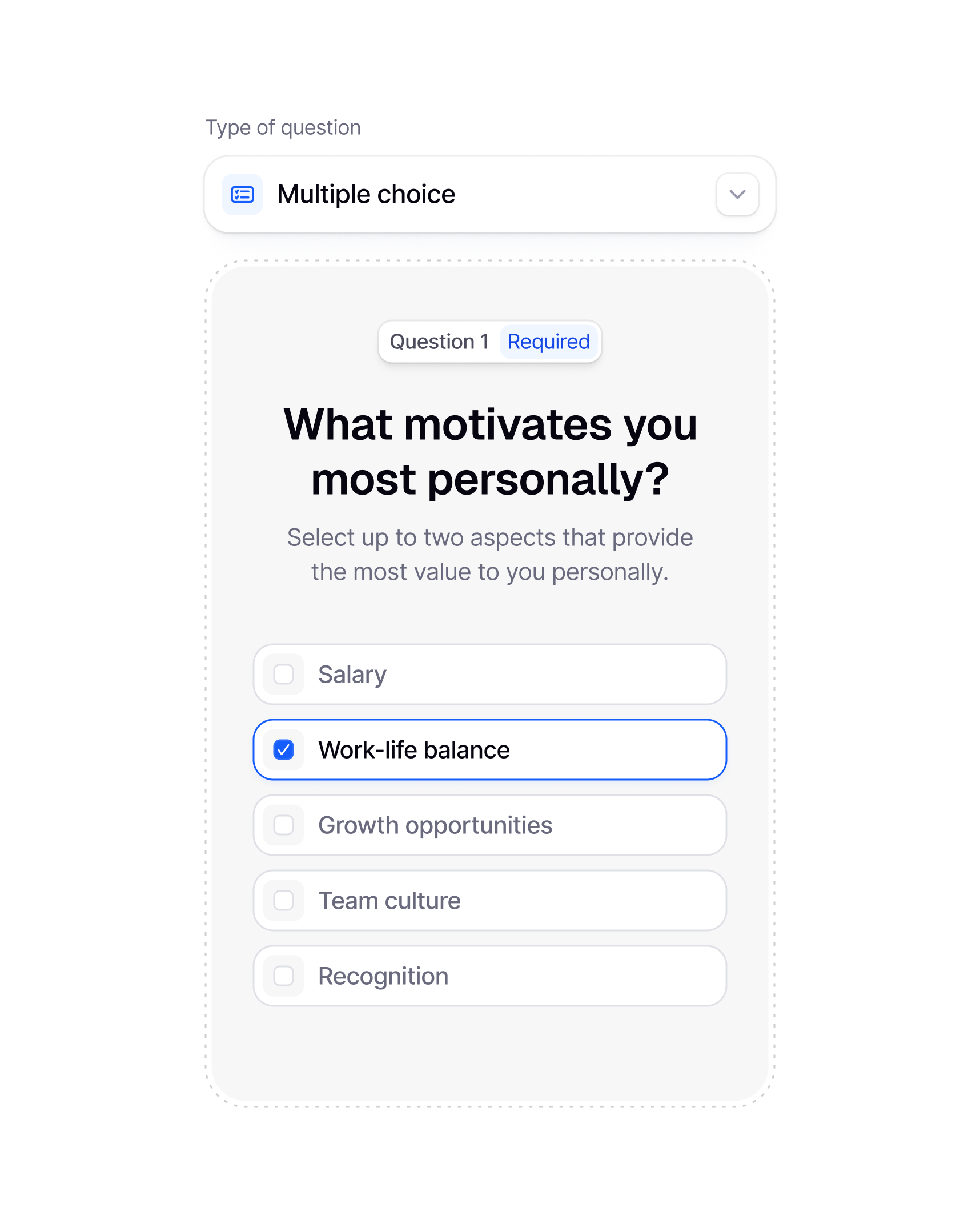
Every question follows the same routine: choose the question type, write the question, list the answers, and point each answer at an ending if the quiz branches. Publish when it reads well on a phone. No developer, no plugin, no separate tool for results.

Customization
Style every screen, from welcome to result
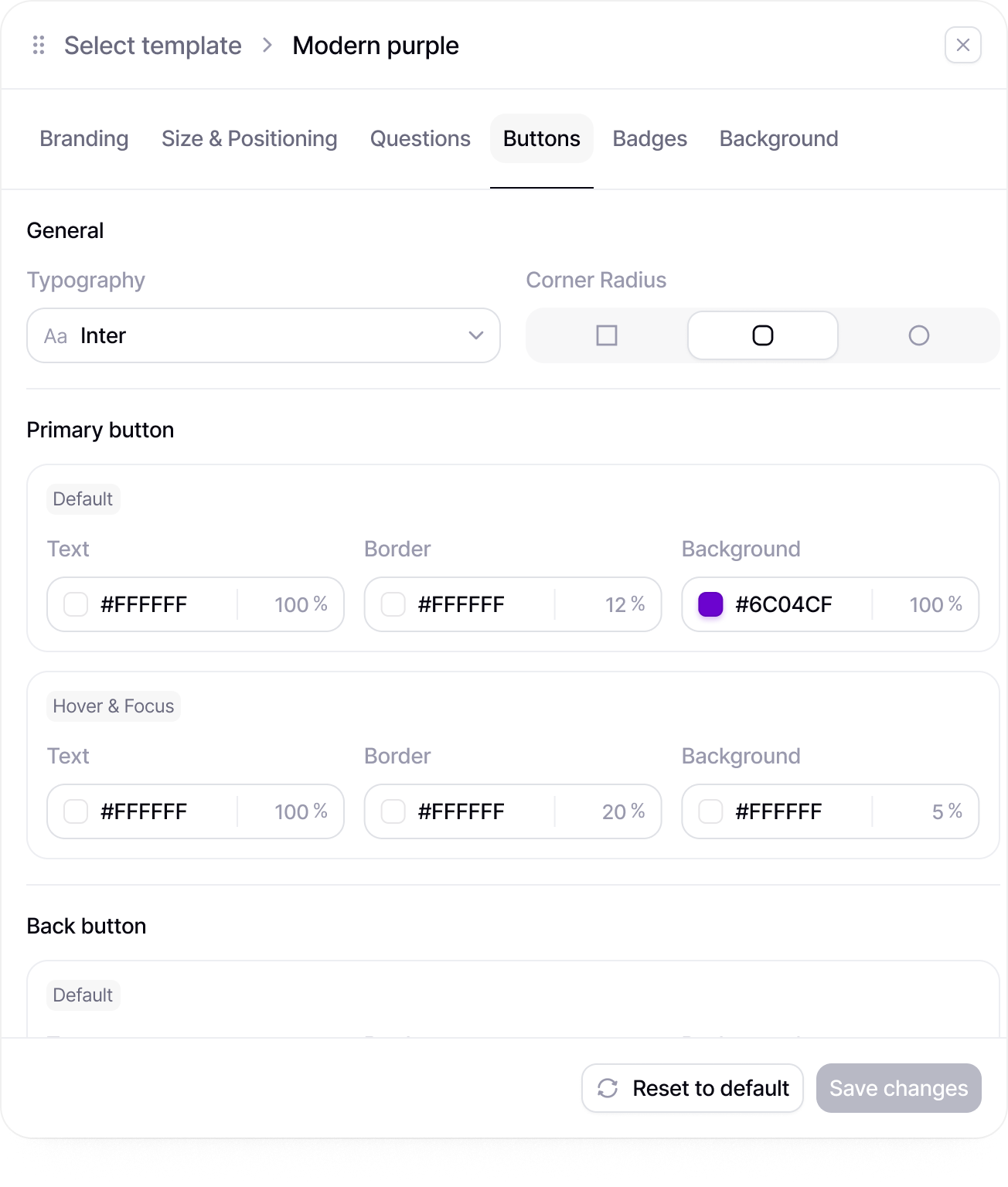
Set colors and fonts once, add your logo, and pick a layout per screen. Welcome and result pages are styled separately from the questions.
Pick a theme when speed matters, or go screen by screen with your own images, buttons, and layouts. A personality quiz can look playful, a training check can match the company handbook, and a lead quiz can sit inside a campaign page without looking borrowed.
Templates
Open a quiz template and change what you need
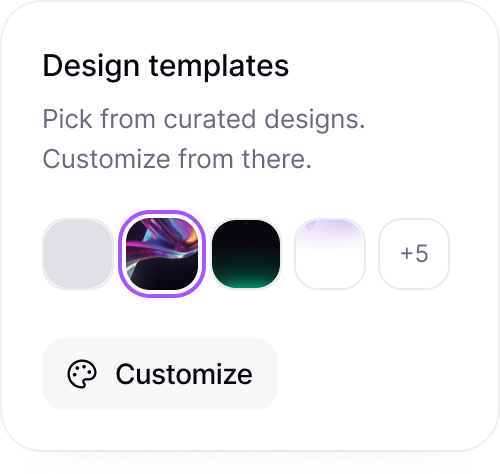
Every template starts with questions and answer options already written, so the first edit is replacing content, not building structure.
Whether you are running a trivia round, sorting people into types, or checking what a course taught, pick the closest template, keep the question order that works, rewrite what does not fit, and add your branding before you share it.


Security
Keep quiz answers and lead details under control
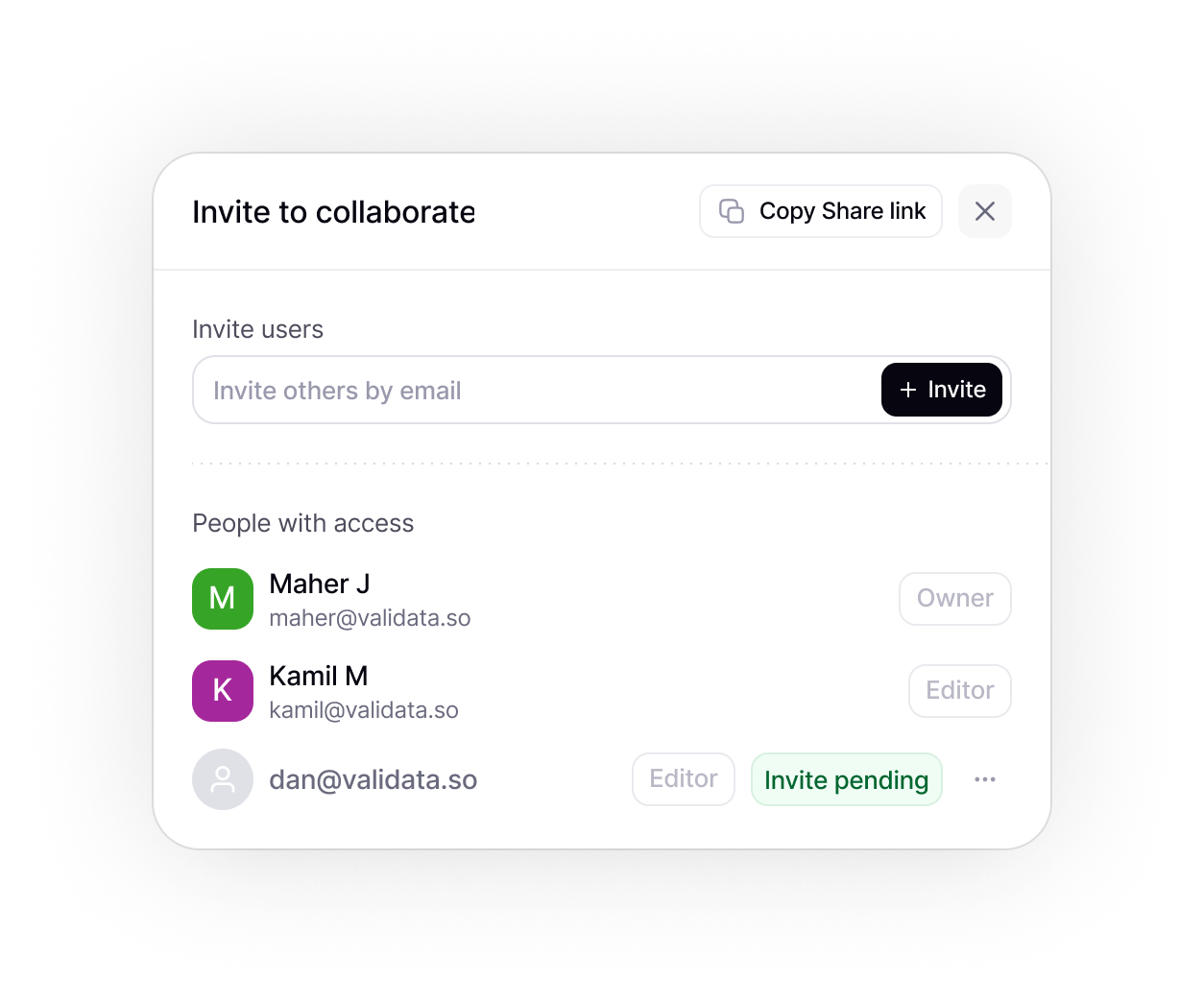
Every quiz lives in a workspace with access control, so answers and contact details stay where your team can find them.
Decide who can build a quiz, who can edit a live one, and who only reviews the results. Lead quizzes collect names and emails, so it matters that they stay in one workspace rather than in exported files.
Collaboration
Write, test, and sign off as a team
Invite a subject expert to check the answers, a designer to tidy the result pages, and a manager to approve the quiz before launch.
Everyone edits the same quiz, so question wording, the right answer, and the ending each person lands on are agreed once, not rebuilt from a document. Reviewers can take the quiz themselves before it goes out.

Slack
Send new response alerts to Slack
Every new survey response can trigger a Slack notification, so your team sees new feedback without checking the dashboard.
Share low completion warnings
Alert your team when survey completion drops below a selected threshold.
Send campaign launch updates
Post a Slack update when a new survey email campaign is sent through Mailchimp.
Notify the team when a survey is completed
Send a message to your team when a respondent finishes the survey.
Response tracking
See where people stop as the first answers arrive
Completion rates, drop-off points, and skipped questions update in real time, so you can see after the first few answers which question is costing you finishes.
Open individual responses to see what each person chose and where they gave up. If one question is skipped more than the rest, shorten it or move it, then keep the quiz running while the fix goes live.
Integrations
Connect your tools
Send data where it matters. Integrate with Sheets, Notion, Slack, and 100+ apps via Zapier.
Slack
Slack
Send new response alerts to Slack
Every new survey response can trigger a Slack notification, so your team sees new feedback without checking the dashboard.
Share low completion warnings
Alert your team when survey completion drops below a selected threshold.
Send campaign launch updates
Post a Slack update when a new survey email campaign is sent through Mailchimp.
Notify the team when a survey is completed
Send a message to your team when a respondent finishes the survey.
Zapier
Zapier
Connect survey responses to your tools
Use Zapier to send new survey responses to the apps your team already uses.

Create tasks after new submissions
Automatically create a task or database item when a new response is submitted.
Save files to cloud storage
Automatically save exports, attachments, or uploaded files to your preferred storage tool.
Add respondents to mailing lists
Send respondents into the right Mailchimp audience after they complete a survey.
Google Drive
Google Drive
Save survey exports to Google Drive
Store CSV, PDF, or spreadsheet exports in a selected Google Drive folder.
Keep uploaded files organized
Save respondent uploads and survey files in one shared Drive location.
Share survey assets with the team
Send a Slack message when new survey files are added to Google Drive.
Store campaign materials
Keep email assets, survey links, and campaign files organized in Drive.
Dropbox
Dropbox
Back up survey exports to Dropbox
Automatically save exported survey files to a selected Dropbox folder.
Organize project folders automatically
Create or update Dropbox folders when a new survey project is created.
Share files with stakeholders
Notify a Slack channel when new survey files are available in Dropbox.
Store respondent uploads
Send uploaded files from survey responses directly to Dropbox.
ChatGPT
ChatGPT
Draft follow-up emails from responses
Use respondent answers to generate personalized follow-up emails after the survey is completed.
Personalize respondent communication
Adapt email copy, reminders, or next-step messages based on selected answers or respondent details.
Write reply drafts for specific feedback
Turn individual survey responses into ready-to-send reply drafts for your team to review.
Create thank-you messages for respondents
Generate custom thank-you messages based on how someone answered the survey.
Mailchimp
Mailchimp
Add respondents to Mailchimp
Send completed survey respondents to a selected Mailchimp audience.
Trigger follow-up emails
Start an email sequence after someone completes your survey.
Send survey invitations
Distribute survey links to selected audiences directly through Mailchimp campaigns.
Segment contacts by response
Group respondents based on selected answers, scores, or form fields.
Google Sheets
Google Sheets
Save responses in Google Sheets
Every new survey response is automatically added to a Google Sheet for easy analysis and reporting.
Update team trackers
Notify your team when a shared response tracker receives new submissions.
Sync response data for operations
Send survey data into operational spreadsheets used by sales, research, or support teams.
Keep live response records
Maintain a live spreadsheet with respondent details, answers, and submission time.
Notion
Notion
Save responses to Notion
Send new survey responses into a Notion database for easy organization.
Create feedback records
Turn each submitted response into a structured feedback item in Notion.
Track research projects
Link survey files, project notes, and response exports inside your Notion workspace.
Notify teams about new entries
Send a Slack update when a new survey response is added to a Notion database.
+100
more intergrations
Quiz templates
Pick a quiz template and edit from there
Each template arrives with questions and answer options in place, so you only change what needs to fit your topic.
Trivia quiz template
Run a team trivia round or a product knowledge check with single choice questions, one right option each, and an end screen that thanks people for playing.
Try template
Personality type quiz template
A few choice questions send each person to a type, each with its own branded result page.
Try template
Lead generation quiz template
A short product finder that asks for an email before showing the recommendation.
Try template
FAQ
Frequently Asked Questions
What Validata does differently, and what that means for your team.
An online quiz maker is a tool for writing questions, setting the answer options, and sharing the quiz by link or embed without code. Validata adds branching to different results, branded screens, and response tracking, so one editor covers tests, personality quizzes, and lead quizzes.
Yes. Validata is free to start. Build a quiz, brand it, add logic and endings, and share the link. Responses show up in your workspace as soon as they arrive.
Conditional logic sends each person to a different ending based on their answers, so a product finder can show a recommendation and a type quiz can reveal a type. Each ending is its own branded end screen.
Any of the 30+ question and content types can go in a quiz, but start with single and multiple choice, rating, ranking, and short text. Add contact fields for lead quizzes, and welcome and end screens for the intro and the result.
Mark answers by pointing each option at its own ending with conditional logic, so a wrong pick lands on a different screen than a right one. Then open every individual response to see what each person chose, and compare answers by group.
Yes. Colors, fonts, layouts, logos, images, and buttons are all yours to set, and the welcome and result screens can be styled on their own.
Yes. Describe the topic and the AI drafts questions and answer options you can edit. It can also tighten wording, change the tone, and suggest more options for a question.
Add a contact field for a name or email and each individual response shows it next to the answers. Leave it out and you still see every answer, just without a name.
A survey asks for opinions and has no wrong answers. A quiz usually has a right answer or a result to reveal, so branching and endings do more of the work. Both use the same editor, question types, branding, and response tracking.
Yes. Ask for a name and email before the result screen, and connect the quiz to HubSpot, Mailchimp, or Google Sheets so each contact is sent over as it arrives. A follow-up automation can hand the new contact to Mailchimp the moment the quiz is done.

You’ve used forms before.
Now use insight.
You don’t need another tool for collecting responses you need a smarter way to understand what they actually mean.