Product feedback survey questions: 12 for SaaS teams
In this article
- Start with these five product feedback questions
- Set up the short survey so every answer has a sensible path
- Choose follow-up questions for the decision you need to make
- Check the wording and the audience before sending
- Turn the responses into an investigation
- Build your product feedback survey in Validata
A product feedback survey can help you decide which part of your SaaS product needs attention. Ask about a task someone recently attempted, find out what happened, and use their answer to choose what to investigate.
The 12 questions below cover task completion, obstacles, workarounds, and feature feedback. Start with questions 1–5 for a short survey. Add a follow-up only when its answer will change what your team does next.
Start with these five product feedback questions
Replace [product] with your product name and the task choices with activities your customers recognize. The examples use a project-management tool. The 30-day recall period is a starting point: choose a period that fits how often people use your product and keep it consistent throughout the survey.
1. What were you mainly trying to do the last time you used [product] in the past 30 days?
Use single choice. Offer a short list of tasks, such as:
- Plan a project.
- Assign work to teammates.
- Check progress on a project.
- Share a project update.
- Something else (optional description).
- I can't remember the task.
- I haven't used [product] in the past 30 days.
Ask for the main task even if they did several things. This gives the later answers a clear context. Someone checking progress may face a different problem from someone assigning work.
2. Did you finish that task?
Use single choice: Yes, in full; Partly, and I stopped; No, and I stopped; I'm still working on it; or I can't remember. Ask this after a task selection, including Something else. Keep a stopped attempt distinct from work still in progress.
3. How easy or difficult was it to work on that task in [product]?
Offer an ordered scale: Very difficult; Somewhat difficult; Neither easy nor difficult; Somewhat easy; Very easy. Add a separate I can't judge option. People who finished and people who stopped partway can both describe the effort involved.
Keep the five scale options in order. When reporting ratings, count I can't judge and skipped answers separately from the scale.
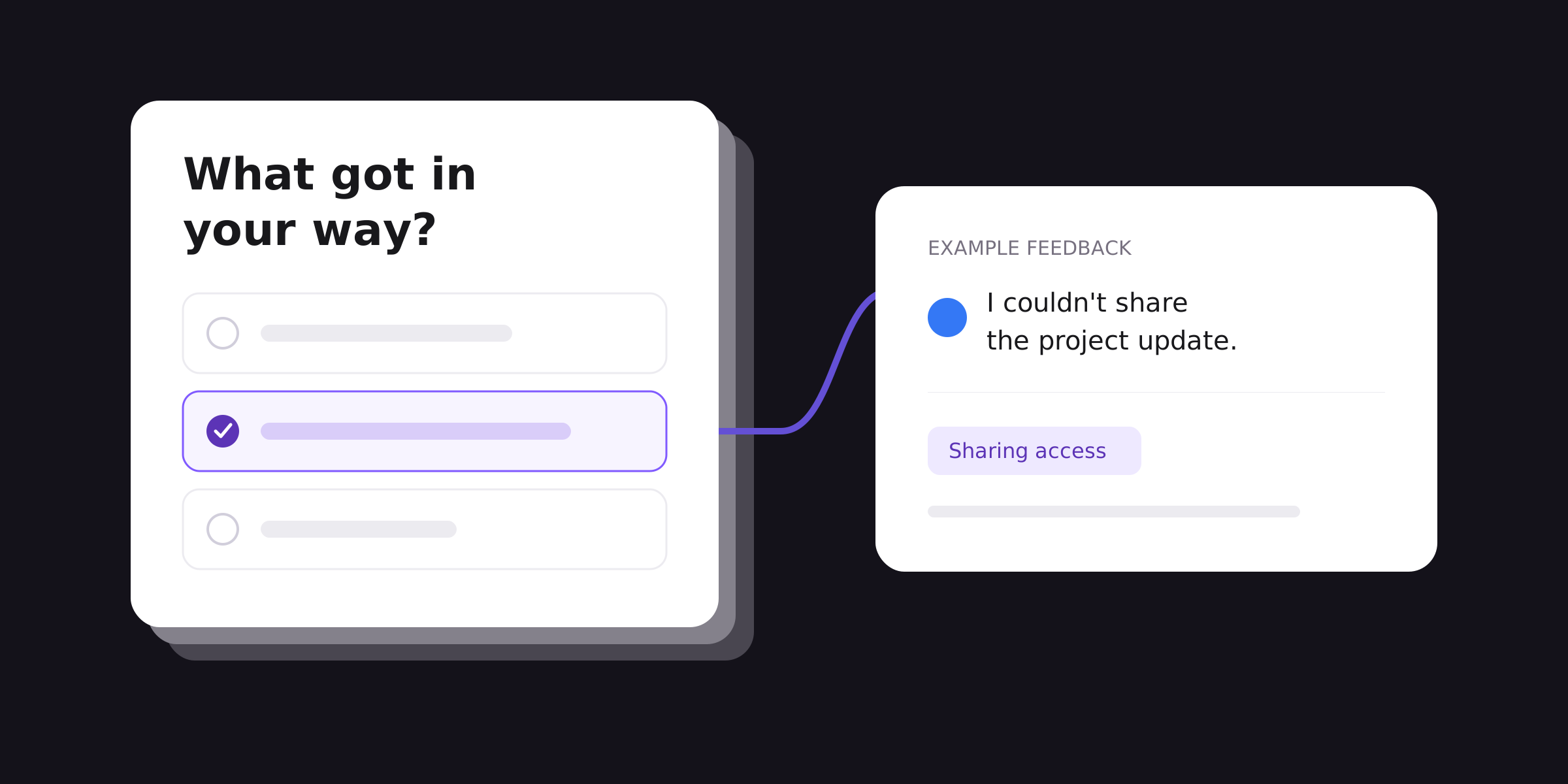
4. What, if anything, got in your way?
Use an optional text box. Ask this before naming possible problems so customers can describe the obstacle in their own words. Add a short instruction: Please leave out passwords, customer details, and other confidential information.
A person who rated the task easy may still mention an obstacle. Show this question to everyone who identified a recent task, rather than only people who gave a low rating.
5. What one change would have helped you most with that task?
Keep this text box optional. Compare the proposed change with the obstacle in question 4. A request for a new dashboard may turn out to be a need for clearer status information on a screen that already exists.
Set up the short survey so every answer has a sensible path
Keep questions optional. Use the following paths for the five-question version; a skipped answer should not force someone to guess.
Scroll sideways to see all columns.| Answer | Next step |
|---|---|
| Q1: a named task or Something else | Show Q2–Q5. An optional Other description can stay blank. |
| Q1: can't remember, no use in the recall period, or skipped | End this survey with a thank-you message. These answers do not establish a recent task to evaluate. |
| Q2: any option or skipped | Continue to Q3. Its I can't judge option covers uncertainty about effort. |
| Q3: any option or skipped | Continue to Q4, then Q5. Both text questions are optional. |
Use branching if your survey tool supports it, or send a version with explicit skip instructions. Check every path in preview, including blank answers. Invite people who abandoned a task as well as people who completed it; surveying only successful users leaves out experiences you need to understand.
Before the first question, explain what the feedback will be used for and whether responses can be linked to an account. If you need feedback about getting started, use the customer onboarding survey questions to cover setup and people who haven't begun.
Choose follow-up questions for the decision you need to make
Questions 6–11 assume the person has identified a recent task in question 1. Choose the relevant section and test its path before sending. Ask the open questions before any list of improvements that might steer the answers.
6. Which part of [product], if any, helped you most with that task?
Use an optional text box when you need to understand what is already useful. Review these answers before changing a workflow. A feature attracting complaints from one group may be essential to another.
7. Did you need another tool or a manual step to work on that task?
Offer Yes, No, or I'm not sure. This includes work still in progress. Show question 8 only after Yes; skip it after No, I'm not sure, or a blank answer.
8. What did you use or do outside [product]?
Ask for a brief description in an optional text box. A spreadsheet, message to a colleague, or repeated copy-and-paste step can reveal a gap in the workflow. Check why it was needed before deciding that a new feature is the answer.
9. Have you tried [feature] in the past 30 days?
Use Yes, No, or I'm not sure. Replace [feature] with the customer-facing name. Show question 10 only after Yes; skip it after No, I'm not sure, or a blank answer. A No answer alone does not tell you whether the person knew the feature existed.
10. What were you trying to accomplish when you last tried [feature]?
Use an optional text box. Treat a blank or can't-remember answer as unknown. Compare the stated goal with the feature's purpose to decide what to examine in a follow-up interview or usability session.
11. Which of these improvements would help you most with [task]?
Use this when you have a concrete shortlist to evaluate. Show options relevant to the task selected in question 1. If that task is unknown or outside your shortlist's scope, skip this question.
For checking project progress, choices might be Show who owns the next step; Show when the status was last updated; or Make overdue tasks easier to find. Include Something else, None of these, and I'm not sure. Ask for one choice and give each option a similar level of detail.
A choice expresses a preference among the options shown. Weigh it alongside the underlying problem, the people affected, and the cost of a change before making a roadmap decision.
12. May our team contact you about this feedback?
Add this optional Yes/No question at the end for people who reached the feedback questions. Ask for an email address only after Yes and only if you need it. If they choose No or skip the question, do not treat that as permission to follow up. Use the contact details for the purpose you described.
Check the wording and the audience before sending
Choose one decision first. For example: Which part of sharing a project update should we investigate? That decision determines whom to invite and which follow-ups are useful. Include the relevant mix of users, not only enthusiastic customers or people who recently contacted support.
Ask about one thing at a time. How easy and useful was the dashboard? combines two judgments that may differ. Separate them when you need both. Keep wording neutral and use terms customers understand. Pew Research Center's questionnaire guidance explains how wording, answer choices, and question order can affect responses.
Try the survey with a few people similar to those you will invite. Ask them to explain what they think each question means. Check that the answer choices fit their experience and that every route works. AAPOR recommends pretesting and piloting before collecting the full set of responses.
Turn the responses into an investigation
Keep task, outcome, rating, and comments together in your analysis. Compare people attempting the same task before combining different workflows. Record who was invited and who replied; respondents may differ from the customers who did not answer.
Count skipped questions separately from explicit answers such as Nothing got in my way or I can't judge. For each percentage, state which answers form the denominator. If several people from one customer account respond, label counts as people or responses, not customer accounts.
Here is a fictional example for a team investigating how users share project updates. It illustrates the counting method; it is not Validata customer data.
The team receives 24 survey submissions. Three people report no recent use, two cannot remember their task, and one skips question 1. Those six take the early exit. The remaining 18 identify a recent task; in this example, all 18 select sharing a project update.
For question 2, eight finish the task, five finish partly, three do not finish, one is still working, and one leaves the answer blank. For question 3, six rate it difficult, two choose the midpoint, eight rate it easy, one can't judge, and one skips it. There are 16 scale ratings: six are in the two difficult categories.
The team reads every answer to question 4 and records this breakdown:
Scroll sideways to see all columns.| What the answer contains | People |
|---|---|
| A permissions problem only | 4 |
| Unclear project status only | 3 |
| Both permissions and unclear status | 2 |
| A slow-loading screen only | 1 |
| An explicit statement that nothing got in the way | 2 |
| A comment too vague to classify | 1 |
| No answer | 5 |
All 18 people are accounted for. Thirteen wrote a comment. Permissions appear in six comments, unclear status in five, and slow loading in one. Two comments contain both of the first two themes, so those theme counts overlap. The two no-obstacle replies, one unclear reply, and five blanks remain separate.
Permissions are the most frequently mentioned obstacle in this small set. The next action is to examine the sharing step and access rules, then watch relevant users attempt it. The survey does not establish that permissions cause churn or that the same pattern holds across the entire customer base.
Review question 5 alongside those comments. If someone requests a new sharing screen because a recipient could not open an update, first check whether the current access controls explain the failure. Record the evidence, the investigation owner, and how you will check a proposed fix.
For a fuller coding workflow, use our guide to analyzing open-ended survey responses. Before sharing quotations or exporting responses, check free text as well as contact fields for identifying or confidential information.
For feedback from people ending a paid subscription, use these SaaS cancellation survey questions to investigate the reasons for leaving.
Build your product feedback survey in Validata
Use Validata's survey builder to create the single-choice questions and text fields for your survey. Start with questions 1–5, replace the example tasks, and check the paths before sharing it with users.
Validata brings survey creation and response analysis together for product and UX teams. Explore the analysis features when you are ready to examine the feedback you collect.

You’ve used forms before.
Now use insight.
You don’t need another tool for collecting responses you need a smarter way to understand what they actually mean.